 RapTor
How to Use PGP: A Kleopatra Setup and Key Management Walkthrough
The top-ranked page for "how to use PGP" prints a 1999 copyright notice and teaches a key-generation command that was retired years ago — its own sample output reads "gpg (GnuPG) 0.9.4; Copyright (C) 1999" and walks through generating a 1024-bit DSA and ElGamal key, both choices no current guide should make.gnupg.org This guide is written against Gpg4win 5.1.0, current as of 29 July 2026,gpg4win.org whose Kleopatra interface was substantially rebuilt in the 5.0.0 release — a January 2026 upgrade from Qt 5 to Qt 6.10.1 and KDE Frameworks 6.20 that reordered menus and reduced context-menu actions If a tutorial's screenshots show a noticeably different menu layout than what's actually sitting on your own screen right now, this is why — and it's exactly the gap this page exists to close, working through Kleopatra setup, key generation, and ongoing key management against the software you're actually looking at rather than a decade-old one.
What to download, and which components to select
Download Gpg4win only from gpg4win.org, never a mirror or a third-party bundler. The installer offers a component selection screen; Kleopatra is the graphical interface this guide uses throughout and must stay checked, along with GnuPG itself, which Kleopatra depends on to actually perform the cryptographic operations.Tails If you plan to encrypt Outlook email specifically, also keep GpgOL selected; if not, deselecting it simplifies the install without losing anything this guide covers.
Generating a key pair in the current release
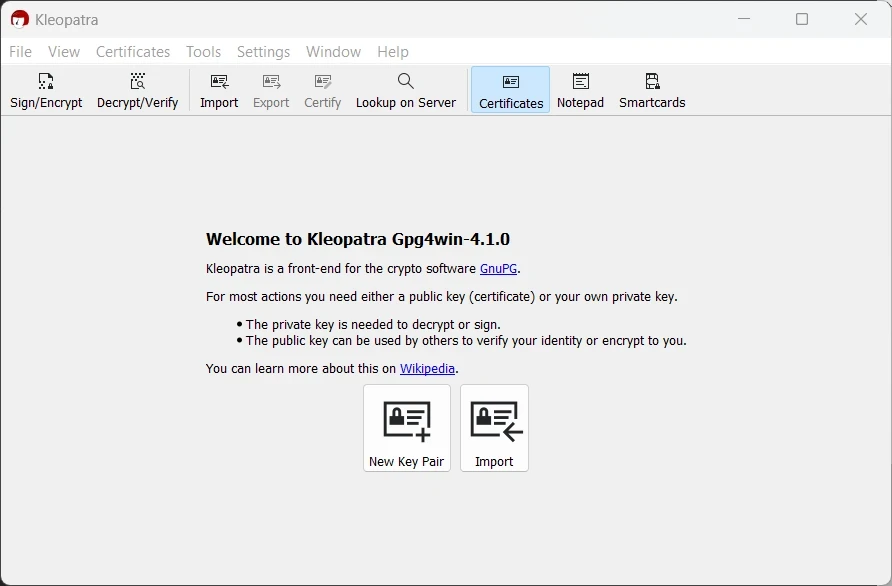
- Open Kleopatra and choose "New Key Pair" from the main window — this is the current release's entry point; older guides describing a separate "generate key" menu item are describing a prior layout.
- Choose OpenPGP key pair rather than X.509/S/MIME, unless you have a specific organizational reason for the latter — OpenPGP is what every other page on this site assumes.
- Enter a name and email address. These become the human-readable identity attached to your key; they don't need to be your legal name, but they should be something you and your correspondents will recognize consistently.
- For algorithm and key length: choose a current elliptic-curve option (Curve25519/ed25519, sometimes labeled "ECC") over RSA where the dialog offers a choice — it's faster and uses shorter keys for equivalent security, and is well past the point of being a niche or experimental option. If only RSA is offered, choose at least 4096 bits; RSA 1024 and DSA, both taught by outdated guides, are no longer adequate.
- Set an expiry rather than "never." A key with no expiry that's later lost, forgotten, or compromised has no built-in mechanism to signal it should stop being trusted; a one-to-two-year expiry, extended before it lapses if you're still using the key, gives you a natural forcing function to actually revisit your own key hygiene.
- Set a passphrase. Skipping it means your private key file alone — no additional secret — is all that's needed to decrypt your messages or forge your signature if that file is ever copied off your machine; the passphrase is what makes a stolen key file alone insufficient.
Exporting your public key, and importing someone else's
To export: select your key in Kleopatra's main list, right-click, and choose Export. Exporting as ASCII-armored text — the printable, copy-paste-safe format covered on what is PGP — is what you'll actually paste into a forum post, a website field, or an email. To import someone else's key: use the Import function and point it at the key file, or paste armored key text directly into Kleopatra's notepad and choose Import from there. After importing, confirm it worked by checking that the new key now appears in your certificate list with the name and email you expected — an import that silently fails or imports a different key than intended is a real, if uncommon, failure mode worth actually checking rather than assuming.
Encrypting so you can still read your own copy
A common early mistake: encrypt a message to a recipient's public key, send it, and discover you can no longer read your own sent copy — because it was encrypted only to their key, not yours. Kleopatra's Sign/Encrypt dialog lets you select multiple recipients for the same operation; add your own key alongside the intended recipient's, and the resulting encrypted message can be decrypted by either of you independently. This isn't a workaround — it's the normal, intended way to keep a readable copy of your own correspondence.
Why decryption fails with "no secret key"
This error means the message was encrypted to a public key whose matching private key isn't present in your own keyring — most commonly because someone encrypted to an old key of yours that you've since replaced, or because you're trying to decrypt on a different machine than the one holding the original private key. The fix depends on the cause: if you have the correct private key backed up elsewhere, import it into the keyring you're using now; if the sender used a stale public key of yours, ask them to re-fetch your current key and re-send. There is no way to decrypt a message with the wrong private key, regardless of how carefully or how many times the correct passphrase is entered — this error is definitional and cryptographic, not a bug you can work around by retrying.
Backing up and restoring your private key
Export your private key (not just the public one) through Kleopatra's export function, choosing the secret-key export option specifically, and store that export file with the same care as a hardware wallet seed — covered in full on seed phrase backup — since anyone holding it and your passphrase can decrypt your messages and sign as you. After a reinstall, import that backup file back into a fresh Kleopatra installation the same way you'd import anyone else's public key, except choosing the secret-key import path, and confirm it restored correctly by checking that your key now shows a secret key indicator in the certificate list rather than only a public one.
What happens when a key expires, and extending it
An expired key can no longer be used to encrypt new messages to you, and signatures made after expiry won't validate — but messages already encrypted to the key before it expired remain decryptable, and signatures made while the key was still valid remain valid, since expiry is a forward-looking cutoff rather than a retroactive invalidation. To extend an expiry before it lapses, open the key's de in Kleopatra and change the expiration date directly; this operation only works while you still hold the private key, which is another reason a lost private key with no backup is a bigger problem than a merely inconvenient one.
Encrypting email: a genuinely different application
Everything above covers encrypting text and files through Kleopatra's own notepad and file dialogs — a different application, in practice, from encrypting email, which requires your mail client itself to understand PGP. Thunderbird has built-in OpenPGP support, with its own separate key storage independent of what Kleopatra manages — Tails' own documentation notes this explicitly: "the OpenPGP keys stored in Thunderbird are separate from the keys stored in GnuPG and visible in Kleopatra."Tails Outlook needs the separate GpgOL add-in selected during Gpg4win installation to gain the same capability If you're encrypting email specifically, set up PGP inside the mail client itself rather than assuming a working Kleopatra installation alone covers it — the two are related but not the same task, and a key generated in one doesn't automatically appear usable in the other without an explicit import.
Ongoing key management: revocation, subkeys, and keyservers
Good PGP key management doesn't end at generation. Create a revocation certificate immediately after generating your key, before you ever use it for anything — Kleopatra offers this from the certificate's context menu — and store it somewhere separate from the key itself. If your private key is ever lost, stolen, or compromised, that certificate is what lets you publicly declare the key invalid without needing access to the key itself to do so, which matters precisely because the scenario where you need it is the scenario where you may not have the key anymore.
Subkeys are a related, more advanced practice worth knowing about even if you don't set one up on your first key: rather than using your primary key directly for everyday signing and encryption, some users generate subkeys tied to the primary key for those day-to-day operations, keeping the primary key itself offline and used only to certify new subkeys or sign other people's keys. This limits the damage if a day-to-day device is compromised — a stolen subkey can be revoked without touching the primary identity a network of trust has already been built around — at the cost of real added complexity most casual users don't need on their first key.
Uploading your public key to a keyserver makes it discoverable by anyone searching for your email address or key ID, which is convenient for ordinary correspondence and is a trade-off worth thinking through for this site's specific audience: a keyserver upload is a permanent, public, generally non-removable record linking a key to an identity, which may be exactly wrong for a pseudonymous identity you're deliberately keeping separate from anything searchable. Sharing a key directly — pasted into a signed forum post, attached to a specific conversation — keeps that same key functional without adding a permanent public directory entry tying it to a discoverable identity.
One further management habit worth adopting early: keep a short, private note of which key you've used for which context, especially once you hold more than one. It's a small amount of bookkeeping against a real, recurring failure mode — signing or encrypting with the wrong key for a given identity, which can quietly link two contexts you meant to keep separate the moment a recipient notices the mismatch. This costs nothing to maintain and catches exactly the kind of mistake that a moment's distraction, not a technical flaw, tends to produce.
Why browser-based PGP tools are the wrong place to hold a private key
A PGP tool running inside a web browser handles your private key in the same memory space as every script on every page you've ever opened in that browser — and unlike a dedicated desktop application, a browser is explicitly designed to run untrusted, third-party JavaScript constantly. Tails' own documentation states the underlying risk plainly in a related context: "it is unsafe to write confidential text in a web browser since JavaScript attacks can access it from inside the browser," recommending Kleopatra's own notepad specifically so sensitive content is composed outside the browser and only the finished, encrypted result is ever pasted into it The same logic applies with more force to your private key itself: a dedicated application like Kleopatra, kept separate from your everyday browsing, is a fundamentally smaller attack surface than a browser extension holding the same key alongside dozens of active tabs.
For the concepts behind everything above, see what is PGP. For applying this specifically to verifying a darknet market's signed address, PGP on the dark web is the next page to read, and Tails covers running this entire workflow from an amnesic operating system if that fits your threat model. Whether a keyserver upload, a persistent identity, or a fresh key per context is the right call for you is ultimately a threat-model question — the OPSEC guide's threat-model checklist is where that decision actually gets made systematically rather than guessed at.